
AI meeting notes on Windows: transcribe, summarize and ask questions
Taking notes while you talk means you miss half the conversation. Dave™ listens to the meeting on your PC, writes it down as it happens and, when you’re done, gives you a summary, the decisions and the to-dos. Later you can ask it things like “What did Tom say about the budget?”.
Open Meeting notes from Dave™’s dock, press Start when the call begins and Stop when it ends. Dave™ transcribes on your computer, writes a summary with decisions and to-dos, files the note in a folder by topic and answers questions about the whole meeting. Meeting notes are part of Dave™ Premium.
Record a meeting
- Join your call in any app: Zoom, Microsoft Teams, Google Meet, Discord or a browser tab.
- In Dave™’s dock, open Meeting notes and pick the spoken language, or leave it on automatic.
- Press Start. Dave™ writes down what it hears from your computer, and from your microphone if Listen to my microphone too is on.
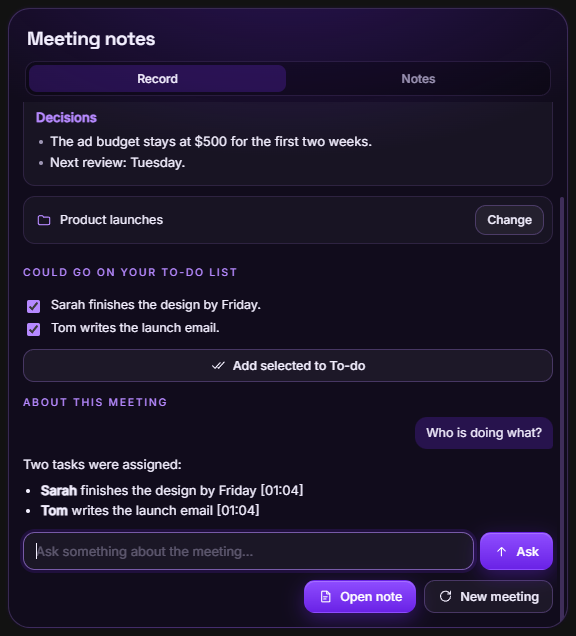
- Press Stop at the end. A few seconds later you get the summary, the decisions and the to-dos; add the ones you want to Dave™’s To-do list with one click.
Ask questions about the meeting
Under About this meeting, ask anything: “Who is doing what?”, “What did we decide about the budget?”, “When is the next review?”. Dave™ answers from the full transcript, not just the summary, and shows when it was said, like [01:04]. You can also ask in Dave™’s chat, “What did we talk about in Monday’s meeting?”, and Dave™ finds the right note.
Folders and search
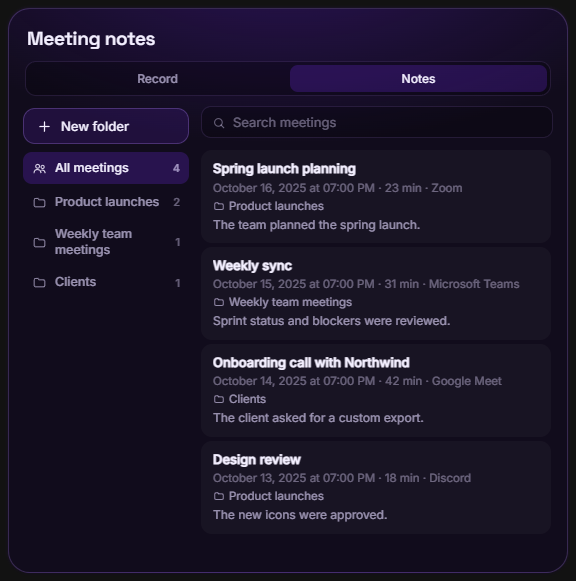
Every meeting is saved in the Notes tab of Meeting notes. Dave™ looks at what was discussed and suggests a fitting folder: it asks before filing the note in an existing folder, or creates a new one. Search finds words anywhere in your meetings, including the transcript.
Privacy
No audio is recorded. Speech is transcribed on your computer and only the text is kept. The summary and the answers are written by the AI you use in Dave™: a model running on your PC (Ollama), or Claude, ChatGPT or Gemini if you connect your own account. Always let people know when you take notes of a call, and follow the rules where you live.
Questions
Does it work with Zoom, Teams and Google Meet?
Yes. Dave™ listens to your computer’s sound, so it works with any meeting app or website, and no bot joins your call.
Is the audio saved?
No. Only the transcript and the notes are kept, on your computer (and in your cloud backup, if you’re signed in to a Dave™ account).
Can I find an old meeting?
Yes. Search in the Notes tab, or ask Dave™ in the chat; it finds the meeting and opens it.
Do I need Premium?
Meeting notes are part of Dave™ Premium; the monthly and yearly plans start with a 3-day free trial.
For Windows 10 and 11. Dave™ is free to download; Premium features start with a 3-day free trial on the monthly and yearly plans.