
How to save game clips on Windows with your voice
Something great just happened in your game and you weren’t recording. With a replay running in the background you can still keep it: Dave™ holds the last moments on your graphics card and saves them when you press a key or simply say “Hey Dave, clip that”.
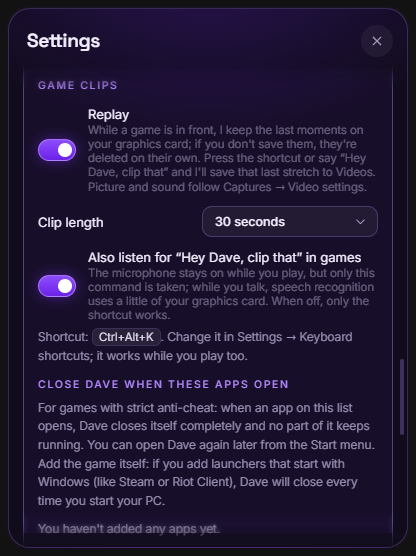
Turn on Settings → Gaming and performance → Replay in Dave™, pick a clip length (15 seconds to 10 minutes), then press Ctrl+Alt+K or say “Hey Dave, clip that” while you play. The clip is saved to your Videos folder. Game clips are part of Dave™ Premium.
Set it up once
- Install Dave™ and open it by moving your mouse to the top center of the screen.
- Open Settings → Gaming and performance and turn on Replay.
- Choose a clip length: 15 seconds, 30 seconds, 1, 2, 5 or 10 minutes.
- Optional: turn on Also listen for “Hey Dave, clip that” in games. While you play, only this command is taken.
- Picture and sound follow Captures → Video: resolution, frame rate, computer sound and microphone.
Save a clip while you play
Press Ctrl+Alt+K (you can change it in Settings → Keyboard shortcuts) or say “Hey Dave, clip that”. Dave™ joins the last stretch into one video named “Game clip” with the date and time and puts it in your Videos folder. Saving takes about a second, because nothing is encoded again.
How it works
- Dave™ records only while a game is in front, and for 45 seconds after you switch away, so it isn’t running the rest of the day.
- It uses Windows’ own screen capture and your graphics card’s video encoder (NVIDIA, AMD or Intel), which keeps the load on your PC low.
- It keeps short two-second pieces and overwrites the oldest ones, so the buffer never grows. Anything you don’t save is deleted when you close Dave™.
- While you’re making a normal screen recording, replay waits.
Game Bar, NVIDIA or Dave™?
Windows’ Xbox Game Bar (Win+Alt+G) and NVIDIA’s Instant Replay can also save the last moments. Dave™’s replay is handy if you’d rather say a short phrase than reach for a key combo, or if you already use Dave™ for the rest of your PC: music, file search, notes, an AI chat and an in-game FPS overlay.
Games with anti-cheat
Dave™’s game mode keeps it out of the way while you play: the window hides and it doesn’t read your mouse or keyboard. We can’t promise zero risk with every anti-cheat system, though. If you’re worried about a ranked game, add it under Close Dave™ when these apps open and Dave™ quits completely when it starts (there’s no replay in that game then).
Questions
Does replay slow down my game?
Recording uses your graphics card’s hardware video encoder, which is built for this, so the effect is small on most PCs. If you notice a difference, lower the resolution or frame rate in Captures → Video.
Where are my clips saved?
In your Windows Videos folder, named “Game clip” followed by the date and time.
Do I need a microphone?
No. The shortcut always works; the voice command is optional.
Is it free?
Dave™ is free to download. Game clips are part of Dave™ Premium; the monthly and yearly plans start with a 3-day free trial.
For Windows 10 and 11. Dave™ is free to download; Premium features start with a 3-day free trial on the monthly and yearly plans.