
A better clipboard history for Windows
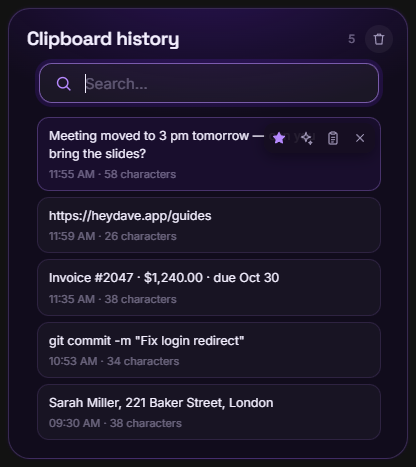
Windows’ own clipboard history is handy but small. Dave™ keeps what you copy in one searchable list, so the address you copied this morning or the image from an hour ago is one click away.
Press Win+Alt+V (or click the clipboard button in Dave™’s dock), search for what you copied and click it: Dave™ pastes it into the app you were using. Clipboard history is included in Dave™ at no extra cost.
How to use it
- Copy as usual with Ctrl+C.
- Press Win+Alt+V or open Clipboard history from Dave™’s dock.
- Type to search, then click an item: it’s pasted where you were typing.
- Pin the things you use often (the star) so they stay at the top.
What it keeps
- Text and links, with the time you copied them.
- Images, like screenshots you copied.
- Files you copy in File Explorer.
Private by design
The history is stored encrypted on your PC, and anything copied from a password manager is skipped. If you sign in to a Dave™ account, text you copy can also reach your other computer; you can turn this off in Settings.
Dave™ or Win+V?
Windows’ built-in history (Win+V) keeps the last 25 items and clears them when you restart, unless you pin them. Dave™ keeps a longer history across restarts, with search, images, files and pinned favorites, and it sits next to the rest of your tools in the dock.
Questions
Is it free?
Yes. Clipboard history is part of Dave™’s free version.
Can I change the shortcut?
Yes, in Settings → Keyboard shortcuts.
Does it save my passwords?
No. Anything copied from a password manager is skipped, and the rest is stored encrypted on your PC.
Can I turn it off?
Yes, in Settings, and you can clear the history at any time.
For Windows 10 and 11. Dave™ is free to download; Premium features start with a 3-day free trial on the monthly and yearly plans.