
A private AI assistant for Windows that runs on your PC
Most AI assistants send everything you type to a server. Dave™’s built-in AI runs on your own computer through Ollama, so your questions stay on your PC, and it still opens apps, finds files, controls music and answers questions from the top of your screen.
Install Dave™ and, during the short tour, let it set up Ollama (about 1.5 GB) and the model you pick (2 to 8 GB). Then move your mouse to the top center of the screen or press Ctrl+Alt+Space and ask anything. The local AI has no account and no usage limits.
Set it up
- Download Dave™ from this site or the Microsoft Store and install it.
- In the tour, choose Ollama as your AI. Then pick a model: Dave™ explains how the five levels differ in speed and smarts, marks the one that fits your computer’s memory and graphics card, and downloads Ollama with the model you chose.
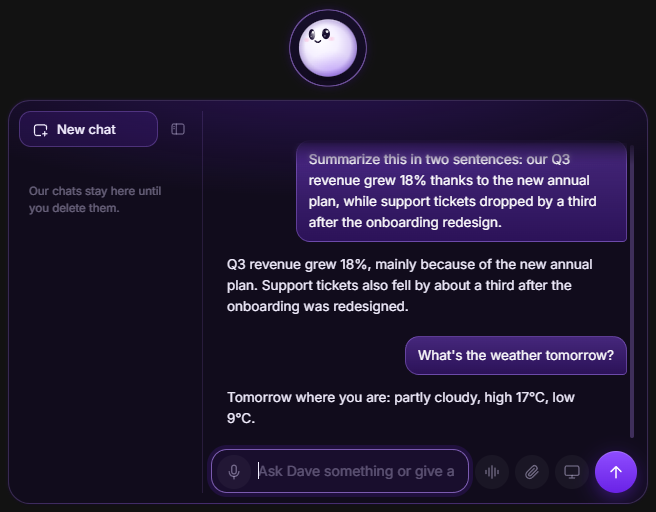
- Open the chat from the dock and ask away. The model loads when you start typing and unloads when you don’t need it.
What you can do with it
- Ask questions, brainstorm and get writing help.
- Select text in any app and press Ctrl+Alt+D to translate, summarize or fix it.
- Open apps, find files instantly, control your music and set reminders, right from the chat.
- With Dave™ Premium, talk to it with “Hey Dave”; speech recognition also runs on your PC.
What you need
64-bit Windows 10 or 11. For the AI, 8 GB of memory or more is recommended, and an NVIDIA graphics card makes answers much faster. Dave™ runs Ollama only when it’s needed, so it doesn’t hold memory while you work or play.
Local or cloud?
A local model is private and has no usage limits, but it’s smaller than the biggest cloud models. With Dave™ Premium you can also sign in with your own Claude, ChatGPT or Gemini account and switch whenever you like; then your questions go to that service under your account.
Questions
Does it work offline?
The AI chat does. Features that need the internet, like the weather or web search, don’t.
Is anything sent to a server?
Not with Ollama: the model runs on your PC and your questions stay there.
Do I need an account or a subscription?
No. The local AI works without an account. A Dave™ account is only needed for cloud backup and Premium.
Which model does Dave™ use?
The one you pick when Dave™ sets up Ollama: five levels from Very light to Most advanced, each with a short note on speed and smarts. Dave™ marks the one that fits your memory and graphics card, and you can download another one later in Settings → AI.
For Windows 10 and 11. Dave™ is free to download; Premium features start with a 3-day free trial on the monthly and yearly plans.