
Batch rename and sort files into folders with a right-click
Renaming 40 holiday photos one by one, or dragging a messy Downloads folder into shape, takes forever. With Dave™ you select the files, hold left Alt and right-click, and a menu shows only the jobs that fit what you selected.
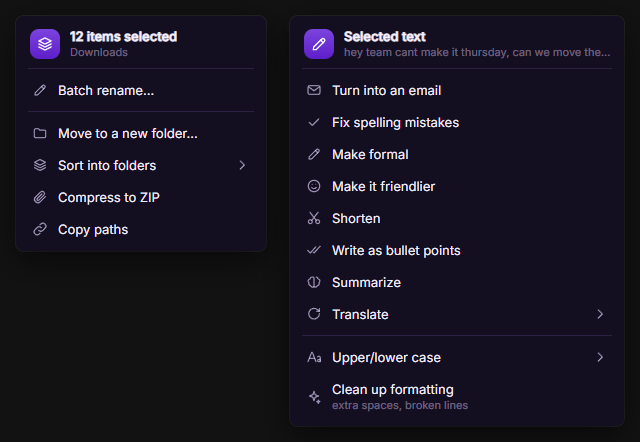
Select files on the desktop or in File Explorer, hold left Alt and right-click, then choose Batch rename…, Sort into folders (by type, date or extension), Move to a new folder… or Compress to ZIP. Select text in any app and the same shortcut offers to turn it into an email, fix it, shorten it or translate it. The menu is free in Dave™.
Batch rename files
- Select the files in File Explorer or on the desktop.
- Hold left Alt, right-click the selection and choose Batch rename….
- Use Find and replace to change part of every name (regular expressions work too), or New name to give them one name with a number: * is the old name, # the number, and ## or ### add leading zeros (01, 001). “Holiday #” gives Holiday 1, Holiday 2 and so on.
- Switch the letters to lowercase, UPPERCASE or Title Case if you like. The extension (.jpg, .pdf) stays as it is unless you turn on Change the extension too.
- Check the preview and press Rename. Changed your mind? Press Undo in Dave™’s bubble.
Sort files into folders
Select a pile of files, hold left Alt, right-click and choose Sort into folders:
- By type: Images, Documents, Videos, Music, Archives, Apps and so on.
- By date: one folder per month, like 2026-10, based on when each file was last changed.
- By extension: PNG, PDF, MP4 and so on.
The folders are created right where the files are. Move to a new folder… puts the selection into one folder you name, Compress to ZIP packs it into a .zip, and Copy paths copies where the files are. Nothing is ever deleted, and if a name is already taken Dave™ adds “(2)”.
Rewrite selected text
Select text in any app, hold left Alt and right-click: Turn into an email, Fix spelling mistakes, Make formal, Make it friendlier, Shorten, Write as bullet points, Summarize or Translate into one of 11 languages. The result opens in Dave™’s Selected text window: Replace puts it in place of your selection, Copy copies it. These are written by the AI you use in Dave™, the free one on your PC or an account you connected. With nothing selected, Dave™ uses the text you last copied.
- Code: convert it to another language such as Python, C#, JavaScript or Rust, tidy it up, add comments or explain it.
- Commands: convert between PowerShell, CMD and Bash, fix quotes, line breaks and $ signs, or explain what a command does.
- Upper/lower case and Clean up formatting (extra spaces, broken lines from a PDF) work instantly, without the AI.
Turn it on or off
The menu is on by default. Switch it in Settings → Keyboard shortcuts → Alt + right-click menu. With Dave™ Premium, Convert, Resize and Shrink the PDFs also show up for files they fit.
Questions
Is it free?
Yes. Batch rename, sorting into folders, ZIP and the text actions are part of Dave™’s free version. Converting, resizing and shrinking PDFs from the same menu need Dave™ Premium.
Can I undo a batch rename?
Yes. The last rename or move can be undone once from Dave™’s bubble. Nothing is deleted, and if a name is already taken Dave™ adds “(2)”.
Does it replace the normal right-click menu?
No. A plain right-click still opens Windows’ menu; Dave™’s menu only opens while you hold left Alt. If you drag with the right button held, as in Blender, Maya or Unity, the click goes to the app as usual.
Does it work in games?
No. While a game or an anti-cheat is running, Dave™ doesn’t watch the mouse, so the menu is off until you’re done.
For Windows 10 and 11. Dave™ is free to download; Premium features start with a 3-day free trial on the monthly and yearly plans.