
Convert images, videos and PDFs offline on Windows
Online converters want you to upload your files to someone else’s server, and many add limits or watermarks. Dave™’s File tools do the work on your own PC: pick a file, choose what you want and save.
Open File tools from Dave™’s dock, pick a file or drag one in, choose Convert, Crop, Resize or Compress, then press Save. Everything runs on your computer, with no internet and no other app. File tools are part of Dave™ Premium.
Convert a file
- Open File tools from Dave™’s dock, or press left Alt+Space for Dave Search and type “file tools”.
- Click Choose a file or drag one onto the panel. Pin the panel to keep Dave™ open while you drag files in from File Explorer.
- Under Convert to, pick the new format. Only the options that fit the file are shown.
- Press Save and choose where the new file goes. The original isn’t changed.
What it converts
- Images: PNG, JPG, WEBP, BMP, GIF, TIFF and ICO into each other, or into SVG and PDF.
- Videos: MP4, MOV, MKV, AVI, WMV and 3GP into MP4 or WMV, or just the sound as MP3. Windows’ own converter does the work on your graphics card.
- PDFs: every page into a PNG or JPG image.
- Documents: TXT, Markdown and HTML into PDF, and Word (DOCX) into plain text.
Crop, resize and shrink
- Crop images and PDFs with a frame you drag, freely or at 1:1, 4:3, 3:2, 16:9 or 9:16. On a PDF it applies to every page, and the text and drawings stay as they are.
- Resize images to fit 854 × 480, 1366 × 768 or 1920 × 1080, a phone screen, half size or a size of your own. A resized copy is saved; the original isn’t touched.
- Compress PDFs with High quality, Balanced or Smallest file. Images inside are shrunk and recompressed while text stays sharp; if the PDF doesn’t get smaller, nothing is saved.
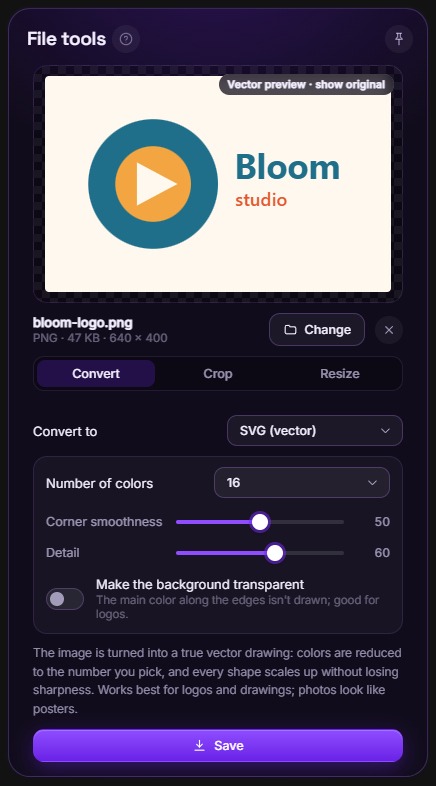
Turn a picture into a real vector (SVG)
Choose SVG (vector) or PDF (vector) for an image and Dave™ traces it into true vector shapes. Pick the number of colors (2 to 64), how smooth the corners are and how much detail to keep, and make the background transparent for logos; the preview updates as you go. It works best for logos and drawings; photos end up looking like posters.
Many files at once
Select several files in File Explorer, hold left Alt and right-click: Convert, Resize and Shrink the PDFs appear when they fit everything you selected, and the copies are saved next to the originals. In these batch jobs, images going into a PDF are placed as pictures; tracing into vectors is done one file at a time in File tools.
Questions
Does it work without internet?
Yes. Everything runs on your computer with Windows’ own image, video and PDF engines and Dave™’s own code; no other app is needed and nothing is downloaded.
Are my files uploaded anywhere?
No. Your files never leave your PC.
Is the original file changed?
No. Save asks where to put the new file, and copies made from the Alt + right-click menu are saved next to the originals.
Do I need Premium?
File tools are part of Dave™ Premium; the monthly and yearly plans start with a 3-day free trial.
For Windows 10 and 11. Dave™ is free to download; Premium features start with a 3-day free trial on the monthly and yearly plans.