
Zoom in and draw on your screen in Windows
Pointing at a tiny number in a spreadsheet during a call, or circling the right button in a demo? Dave™ freezes your screen so you can zoom in on a detail or mark it up, and Esc puts everything back.
Hold left Alt and scroll up to zoom in; keep scrolling to zoom further and move the mouse to look around. Press left Alt + middle-click to draw on the screen with a pen, highlighter, arrows, boxes or text, then copy or save the result. Both are free in Dave™.
Zoom in
- Hold left Alt and scroll the wheel up. The screen your mouse is on freezes and magnifies.
- Scroll (or press ↑ and ↓) to zoom up to 16×, and move the mouse to look around.
- Click to start drawing on what you see; right-click goes back to zooming.
- Press Esc to close.
Draw on the screen
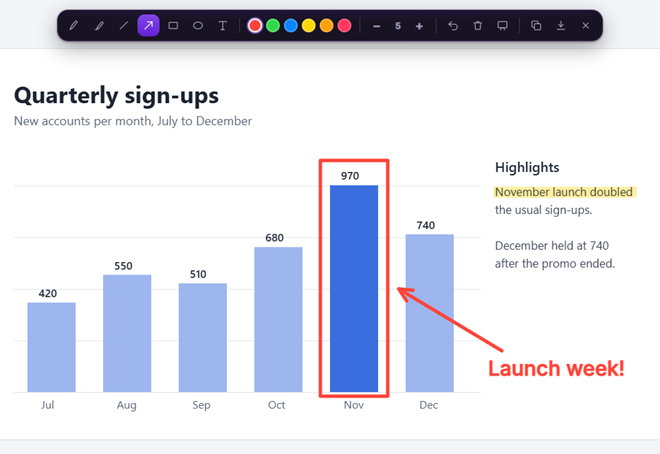
- Press left Alt + middle-click. A toolbar appears at the top: pen, highlighter, line, arrow, rectangle, ellipse and text.
- Pick one of six colors and change the thickness with the wheel or the − and + buttons.
- Use Ctrl+Z to undo, E to erase everything, and W or K to draw on a white or black board instead.
- Press Ctrl+C to copy the picture with your drawing to the clipboard, or Ctrl+S to save it as a PNG.
Handy keys while drawing
- Drag with Shift for a straight line, Ctrl for a rectangle, Ctrl+Shift for an arrow and Tab for an ellipse.
- T types text; R G B Y O P switch colors, and with Shift they pick the highlighter.
Change the drawing shortcut
Go to Settings → Keyboard shortcuts → Draw on the screen, click the keys and press a new keyboard shortcut, or click with the mouse: middle-click together with Ctrl, Alt or Shift, or a side button (Mouse 4 or Mouse 5). Zoom and draw are also in Dave Search and in the Alt + right-click menu when nothing is selected.
Drawing in games
Turn on Work in games too under the drawing shortcut and you can draw over a game: its picture freezes, you draw on it, and closing takes you back to the game. While a game runs, Dave™ listens only for that shortcut. Anti-cheat systems may not like it: the risk is low but not zero, so turn it off before ranked or competitive matches, or quit Dave™ completely. While an anti-cheat such as Easy Anti-Cheat or BattlEye is running, only a keyboard shortcut works, not a mouse one.
Dave™ or Magnifier?
Windows’ Magnifier (Win + +) zooms in, but it can’t draw on the screen. Dave™ does both from the same left Alt key, freezes the picture so it doesn’t move while you explain, and lets you copy or save what you drew.
Questions
Is it free?
Yes. Zoom and draw are part of Dave™’s free version.
Does it work with more than one monitor?
Yes. Dave™ zooms or draws on the screen your mouse is on.
Where are saved drawings?
In Dave™’s screenshots folder (Pictures\Dave unless you changed it), as a PNG named “Dave Zoom” with the date and time.
Can I turn the shortcuts off?
Yes. Switch off Zoom the screen or Draw on the screen in Settings → Keyboard shortcuts.
For Windows 10 and 11. Dave™ is free to download; Premium features start with a 3-day free trial on the monthly and yearly plans.