
A free expense tracker and budget planner for Windows
Spreadsheets get abandoned, and many budgeting apps want your bank login first. Dave™’s Finance panel is one click away in the dock: type “spent 45 on groceries” in the chat or add it by hand, and Dave™ keeps the totals, budgets and reminders for you.
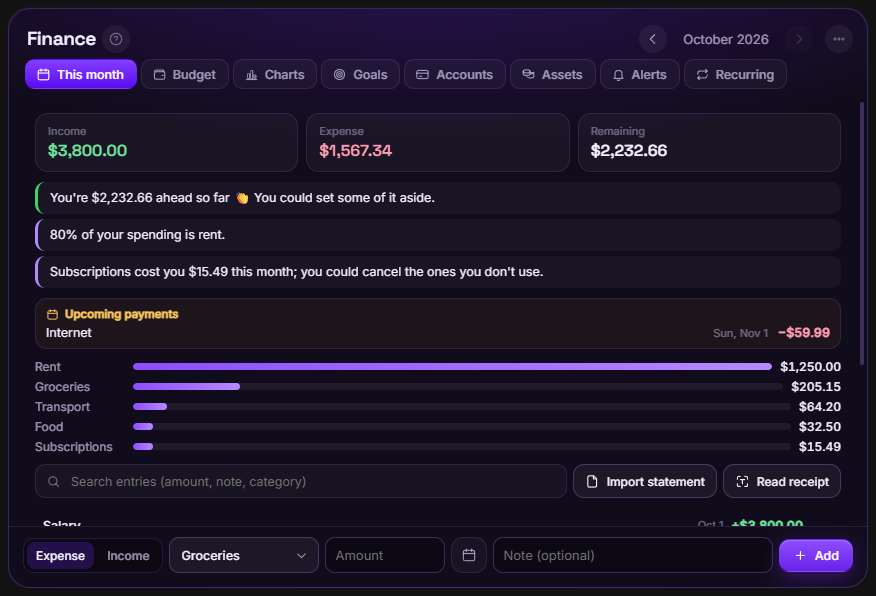
Open Finance from Dave™’s dock, choose Expense or Income, a category and the amount, and press Add, or simply tell Dave™ in the chat. Budgets, savings goals, accounts, charts and payment reminders are free; bank statement import, receipt reading, gold, currency and stock tracking and a read-only exchange connection come with Dave™ Premium.
Log income and expenses
- Click Finance in Dave™’s dock.
- In This month, choose Expense or Income, a category and the amount, add a note if you like and press Add. The calendar button picks another day.
- Or tell Dave™ in the chat, like “spent 45 on groceries” or “got paid 3200”. Dave™ works out whether it’s income or an expense, the amount and the category.
- Click an entry to edit it, or search your entries by amount, note or category.
Budgets, goals and charts
- Budget: set a monthly limit for any expense category. The bar turns yellow at 80% and red once you go over, and Dave™ lets you know both times.
- Goals: save for a holiday, a phone or an emergency fund. Set a deadline and Dave™ tells you how much to put aside each month.
- Accounts: cash, bank accounts and credit cards, with their balances, card debt and transfers between them.
- Charts: income and expenses for the last 12 months, the month’s spending breakdown and a yearly summary.
- Recurring: add rent, salary, bills and subscriptions once, and Dave™ adds them on that day every month.
Payment reminders and questions
Recurring payments show up under Upcoming payments, and Dave™ reminds you the day before one is due, and when a credit card with a balance is due tomorrow. You can also ask in the chat: “how much did I spend this month?”, “how are my budgets?” or “upcoming payments”. Those answers come straight from your own records on your PC.
With Dave™ Premium
- Import statement: add the transactions from a CSV or Excel file you downloaded from your bank. Dave™ finds the columns, guesses the categories and marks entries you already have; you choose what to add in a preview.
- Read receipt: from a photo or an area of your screen, Dave™ reads the total, date and store with Windows’ own text recognition.
- Assets and Alerts: track gold, currencies, stocks and crypto at live prices, see your net worth together with your accounts, and get told when a price reaches your target.
- Exchange: connect a Binance account with a read-only API key. Dave™ refuses keys that can trade, withdraw or transfer, and only reads balances.
Dave™ works out its tips with its own rules and doesn’t give investment advice; prices are approximate.
Questions
Is it free?
Yes. Income and expense tracking (also by chat), budgets, goals, accounts, charts and payment reminders are free. Statement import, receipt reading, asset tracking and the exchange connection are part of Dave™ Premium.
Do I have to connect my bank?
No. You add entries by hand or in the chat. With Premium you can import a statement file you downloaded from your bank; Dave™ never signs in to your bank.
Where are my records stored?
On your PC. If you sign in to a Dave™ account, they’re also included in your cloud backup, without your exchange keys.
Can I look at past months?
Yes. Use the arrows next to the month, or click a month in Charts to jump to it.
For Windows 10 and 11. Dave™ is free to download; Premium features start with a 3-day free trial on the monthly and yearly plans.