
In-game FPS counter and benchmarking on Windows
Did that new driver or graphics setting really help, or does it just feel smoother? Dave™ puts a small FPS counter in a corner of your game and records short benchmarks you can compare before and after, without adding anything to the game itself.
Turn on Settings → In-game overlay → Show the overlay in games for live FPS, 1% low, frametime and CPU and GPU temperatures. To benchmark, press Ctrl+Alt+P in a game (or Start recording in Games → Performance), then compare two recordings side by side. Both are free in Dave™.
Turn on the FPS overlay
- Open Dave™ by moving your mouse to the top center of the screen, then go to Settings → In-game overlay.
- Turn on Show the overlay in games. Leave Only while a game is open on if you don’t want it on the desktop.
- Under What to show, pick from FPS, FPS min, max and 1% low, frametime and its graph, CPU and GPU temperature and usage, memory and the time.
- Choose a stacked or single-line look, one of six positions, the text size and the background, then press Preview.
- If you see Allow FPS, press it once and approve the Windows prompt; FPS appears after you sign out of Windows and back in. If RivaTuner (MSI Afterburner) is running, Dave™ reads FPS from it instead.
While you play, Ctrl+Alt+O hides or shows the overlay and Ctrl+Alt+R resets min, max and 1% low. The values also start over when a new game starts.
Record a benchmark and compare
- Open Games from Dave™’s dock and pick Performance.
- Choose how long to record: 30 seconds, 1, 2 or 5 minutes, or No limit (until you stop it, up to 2 hours).
- In the game, press Ctrl+Alt+P to start. You can also press Start recording and switch to the game: recording begins when the game comes to the front. Time spent tabbed out isn’t counted.
- When it ends you get the average FPS, 1% and 0.1% lows, the lowest and highest FPS, a second-by-second graph, and CPU and GPU usage with their peak temperatures.
- Add a note such as “DLSS on” or “new driver”, then add two recordings to the comparison to see the change in percent. Copy any result as an image card to share it.
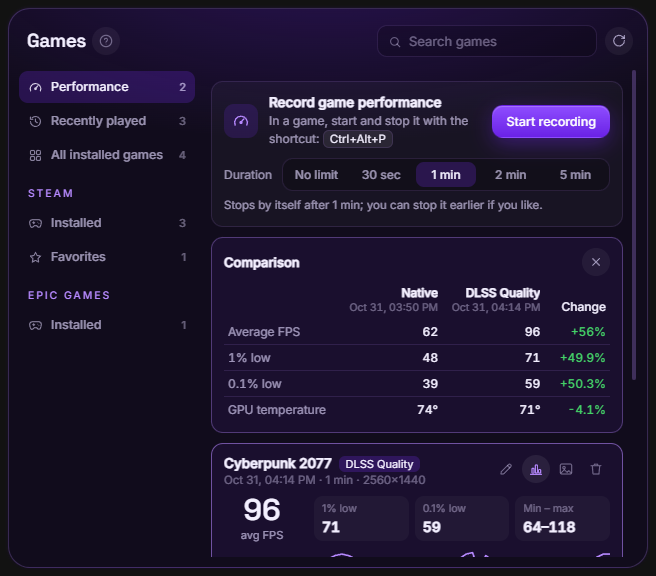
You can also type “start a benchmark” in Dave™’s chat. The overlay and benchmark shortcuts can be changed in Settings → Keyboard shortcuts.
Game mode keeps Dave™ out of the way
When a full-screen game starts, game mode hides Dave™’s window, stops watching your mouse and keyboard, sends no keys and takes no screenshots; notifications wait until you’re done. It switches on by itself when a game starts. The overlay is a separate window that clicks pass through, and nothing is injected into the game. It doesn’t show over games in exclusive fullscreen, only in borderless fullscreen.
Anti-cheat and ranked games
FPS comes from Windows’ own event tracing, not from inside the game. Even so, we can’t promise zero risk with every anti-cheat system: the risk is kept as low as possible, not removed. Before ranked or competitive games, fully quit Dave™ from its tray icon, or add the game under Settings → Gaming and performance → Close Dave™ when these apps open and Dave™ quits completely when it starts.
Questions
Is it free?
Yes. The in-game overlay, performance recording and game mode are all part of Dave™’s free version.
Why can’t I see the overlay in my game?
The overlay doesn’t show over games in exclusive fullscreen. Switch the game to borderless (windowed) fullscreen and it appears.
Why does the CPU temperature show “—”?
On some PCs, for example Ryzen desktops, Windows doesn’t share the CPU temperature. Allow Dave Sensors, Dave™’s small optional helper, once in Settings → System monitor and Dave™ reads it; with the Microsoft Store version, you download the helper from this site. It uses a kernel driver, which carries some risk with anti-cheat, so quit Dave™ before ranked matches.
Where are my recordings kept?
Only on your PC, under Games → Performance. You can add a note to each one, delete it or copy its result card as an image.
For Windows 10 and 11. Dave™ is free to download; Premium features start with a 3-day free trial on the monthly and yearly plans.